Test Rules
Whistle provides convenient rule testing entry points to help you quickly verify how your rules match. You can access the test feature from:
- Network list: Right-click menu →
Actions→Test Rules - Create Rule dialog:
Preview Rules→Test - Rules list: Right-click menu →
Actions→Test Rules
With this feature, you can construct arbitrary requests and instantly check whether the current rule works as expected.
Interface Overview
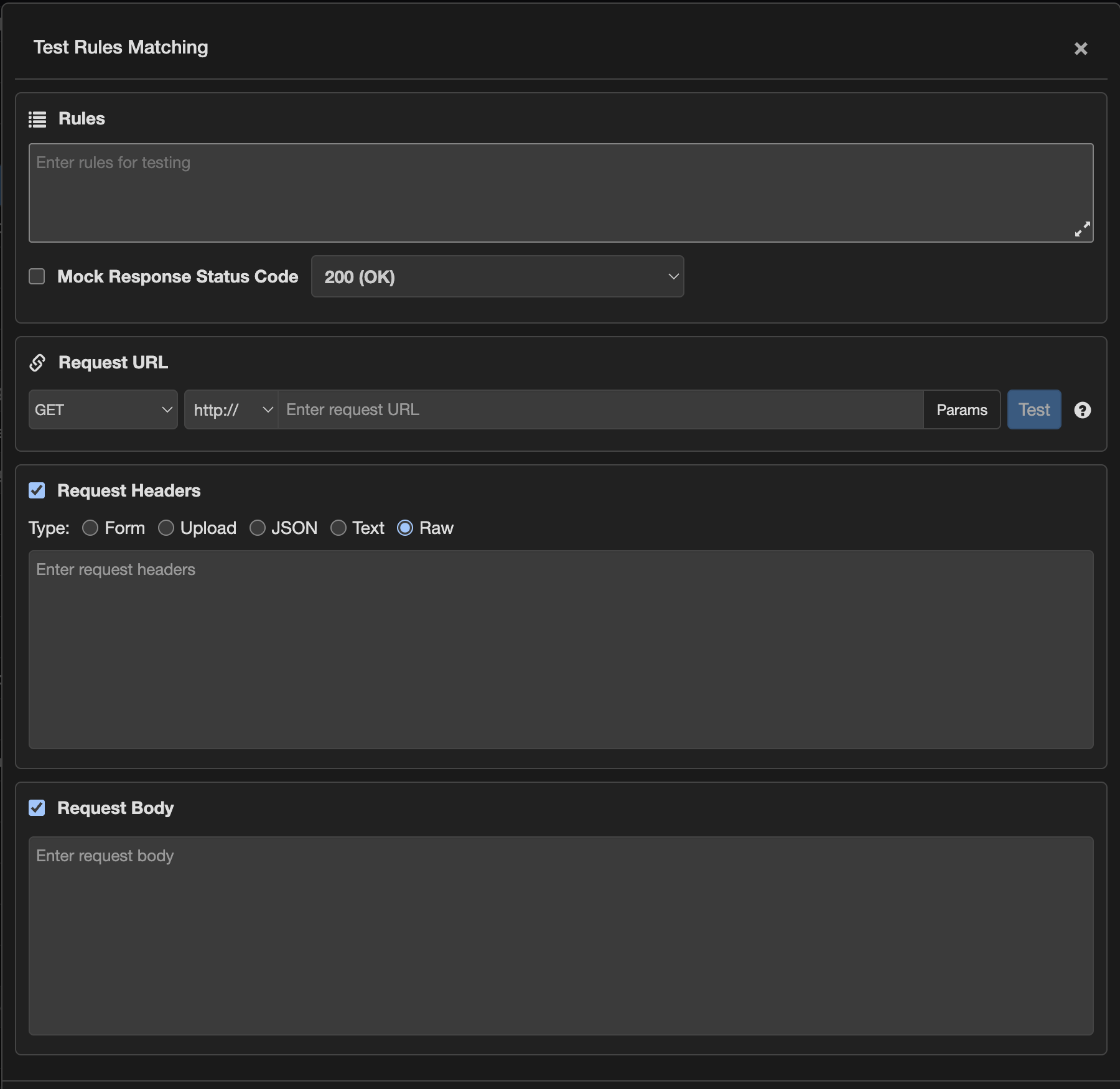
Feature Descriptions
1. Rule Editor
- Used to enter the rule(s) to be tested.
- The system automatically populates the editor with the currently selected rule (e.g., the matched rule, the rule from Preview, or the content from a Rules file). You can also edit manually.
- Click the expand button in the bottom‑right corner to open a larger standalone window for editing complex rules.
2. Direct Mock Response (optional)
- Default behaviour: When you click
Test, the request goes directly to the live service. - Enable this option: You can specify a response status code to simulate a server reply without actually hitting the live service. This is useful for quickly verifying rule logic.
3. Request Method
- Select the HTTP method (e.g., GET, POST, PUT, etc.) to match
methodconditions in your rules.
4. Request URL
- Enter the full request address (including protocol, domain, path, and query parameters) to test
urlmatching logic.
5. Request Headers
- Customise header fields (
Key: Valueformat) to simulate specific header scenarios for rule matching.
6. Request Body (Content)
- Input request payload data (e.g., JSON, form data, etc.) for testing rules that depend on request body content (e.g.,
includeFilter://b:patternconditions).
7. Test Button
- Click to initiate a simulated request based on your configuration. A dialog will pop up showing the match results (including matched rules, action types, and detailed information), helping you quickly locate issues or verify rule effectiveness.